
Skip to content
No results
Purple hexagonal logo with white diamond-shaped center featuring geometric star pattern design suitable for corporate branding and digital applications
LIPS®Developer
Documentation
Back To LIPS
Purple hexagonal logo with white diamond-shaped center featuring geometric star pattern design suitable for corporate branding and digital applications
LIPS®Developer
Documentation
Back To LIPS

Quick Introduction

7
  • LIPS® Documentation Overview
  • 3D Depth Camera Tech Overview
  • Depth Image
  • Understanding Depth
  • An Ideal Depth Camera
  • LIPSedge™ AE Series Camera Selection Guide
  • Frequently Asked Questions

LIPSedge Documents

57
  • LIPSMetric™ ST115b
    • User’s Manual
    • SDK Release
  • LIPSMetric™ HA110-M
    • User’s Manual
    • SDK Release
  • LIPSMetric™ HA115a
    • SDK Release
    • User’s Manual
  • LIPSMetric™ ST110d
    • User’s Manual
    • SDK Release
  • LIPSedge™ AE400 / AE450
    • LIPSedge™ AE400 / AE450 Complementary Documents
      • Certifications Documents
      • STEP files for CAD Use
      • Firmware
    • LIPSedge™ AE400 / AE450 User Guide
      • LIPSedge™ AE400 / AE450
      • User Guide
      • Previous Releases (Archive)
    • LIPSedge™ AE400 / AE450 SDK Release
      • SDK Release
      • Previous Releases (Archive)
    • LIPSedge™ AE400 / AE450 Installation
      • Installation
      • Linux
      • Windows
      • ROS Wrapper
      • NVIDIA ISAAC Wrapper
      • Persistent Connection
  • LIPSedge™ AE430 / AE470
    • LIPSedge™ AE430 / AE470 Supplementary Documents
      • Firmware
      • STEP files for CAD Use
    • LIPSedge™ AE430 / AE470 User Guide
      • LIPSedge™ AE430 / AE470
      • User Guide
      • Previous Releases (Archive)
    • LIPSedge™ AE430 / AE470 SDK Release
      • SDK Release
      • Previous Releases (Archive)
  • LIPSedge™ DL & M3 Series
    • LIPSedge™ DL & M3 Series Installation
      • Installation
      • Ubuntu
      • Windows
    • LIPSedge™ DL & M3 Supplementary Documents
      • STEP files for CAD Use
    • LIPSedge™ DL & M3 Series SDK Release
      • SDK Release
      • Changelog
      • Previous Releases (Archive)
    • LIPSedge™ DL & M3 Series User Guide
      • LIPSedge™ DL & M3 Series
      • User Guide
      • Previous Releases (Archive)
  • LIPSedge™ L215u / L210u
    • LIPSedge™ L215u / L210u User Guide
      • LIPSedge™ L215u / L210u
      • User Guide
      • Previous Releases (Archive)
    • LIPSedge™ L215u / L210u SDK Release
      • SDK Release
      • Changelog
      • Previous Releases (Archive)
    • LIPSedge™ L215u / L210u Installation
      • Installation
      • Linux
      • Windows
    • LIPSedge™ L215u / L210u Supplementary Documents
      • STEP files for CAD Use
  • LIPSedge™ L235
    •  LIPSedge™ L235 User’s Manual
    • LIPSedge™ L235 SDK Release
  • LIPSedge™ S Series
    • LIPSedge™ S Series User Guide
      •  LIPSedge™ S Series
      • User Guide
    • LIPSedge™ S Series SDK Release
      • SDK Release
    • LIPSedge™ S Series Installation
      • Windows
  • LIPSedge™ AE430-DK / AE470-DK
    • LIPSedge™ AE430-DK / AE470-DK
    • User Guide

LIPSedge™ SDK 1.x

82
  • Introduction to LIPSedge™ SDK 1.x
    • LIPSedge™ SDK 1.x
    • Benefits from LIPSedge™ SDK implementation
    • LIPSedge™ SDK 1.x Installation Architecture
    • How to identify each camera SDK
  • Tutorial and deployment
    • Tutorials
    • Development and Deployment on arm64
  • Features Articles
    • Features Articles
    • LIPSedge™ SDK Persistent Connection for PoE and USB
  • LIPSedge™ SDK Frameworks
    • LIPSedge™ SDK Frameworks
    • ROS
    • ROS2
    • NVIDIA Isaac Wrapper
    • GenICam (for Halcon / Aurora Vision)
      • GenICam (for Halcon / Aurora Vision)
      • User Manual
      • Driver(.cti) and Nodemap (.xml)
      • Supported LIPSedge™ Camera SDK
      • Installation Example
  • LIPSedge™ SDK v1.02 Tools
    • LIPSedge™ SDK v1.02 Tools
    • DepthViewer
    • PointCloudViewer
    • CameraParameterViewer
    • CameraCenterViewer
    • CameraEventListener
    • CameraPowerTest
    • LensModeSelector
    • LIPSImuReader
    • CameraSimpleViewer
    • RawFileViewer
  • LIPSedge™ SDK Languages & Libraries
    • LIPSedge™ SDK Languages & Libraries
    • OpenCV
    • C++
      • C++
      • environment-setup
      • hello-lipsedge-sdk
      • opencv-viewer
      • roi
      • depth-data
      • align-depth-color
      • range-filter
      • remove-background
      • record
      • pointcloud
      • config-resolution
      • camera-parameter
      • align
      • distance
      • grabcuts
      • measure
      • motion
      • post-processing
      • save-to-disk
      • sensor-control
    • Python
      • Python
      • environment-setup
      • hello-lipsedge-sdk
      • opencv-viewer
      • roi
      • depth-data
      • align-depth-color
      • range-filter
      • remove-background
      • record
    • Java
      • Java
      • ni-hello
    • C#
      • C#
      • ni-hello
      • simple-read
  • New Features for v1.02
    • New Features for v1.02
    • Installing and identifying packages on Windows
    • Saving Captures and Videos with the DepthViewer
    • Saving Point Cloud with PointCloudViewer
    • Live On-Screen displaying Depth, FPS
    • Live On-Screen displaying XYZ parameters in RawfileViewer
    • Distance measurement on-screen from point-to-point
    • Mouse Pointer Change
    • LIPSedge™ AE and S series Colormap new feature addition
    • Simple naming for LIPSedge™ SDK Tools
    • Importing parameters from .json files for LIPSedge™ AE and S series
  • LIPSedge™ SDK Sample Codes
    • LIPSedge™ SDK Sample Codes
    • Sample Applications & Viewer & Utilities
      • Sample Applications & Viewer & Utilities
      • ni-viewer
      • ni-pointcloud-gl
      • ni-camera-matrix

LIPSense Documents

33
  • LIPSense™ 3D Body Pose Middleware
    • LIPSense™ 3D Body Pose SDK
    • User Manual & SDK Download
    • License Management
    • Changelog
    • Previous Releases (Archive)
    • Examples
      • Python
        • Python
        • python_example
      • c#
        • SkeletonCSharp
        • C#
      • C++
        • C++
        • skeleton_example
        • skeleton_opencv
  • LIPScan 3D ™ Middleware
    • LIPScan 3D ™ Middleware
    • LIPScan 3D™ Desktop
      • LIPScan 3D™ Desktop
      • User Guide
      • Application Download
      • Release Notes
      • Previous Releases
    • LIPScan 3D™ SDK
      • LIPScan 3D™ SDK
      • User Guide
      • SDK Download
      • Release Notes
      • Previous Releases
  • LIPSFace™ SDK
    • LIPSFace™ SDK
    • LIPSFace Overview
    • Changelog
  • LIPSFace™ HW120/125 On-Device 3D Facial Recognition
    • LIPSFace™ HW120/125 On-Device 3D Facial Recognition
    • User Guide
    • SDK Download
    • STEP files for CAD Use
  • LIPSFace™ HW110/115 On-Device 3D Facial Recognition
    • LIPSFace™ HW110/115 On-Device 3D Facial Recognition
    • User Guide & SDK Download
    • STEP files for CAD Use

LIPSMetric Documents

9
  • LIPSMetric™ Measure Master
    • User’s Manual
    • SDK Release
  • LIPSMetric™ VD115 Vehicle Dimensioner
    • LIPSMetric™ VD115 Vehicle Dimensioner
  • LIPSMetric™ ST115 Static Dimensioner
    • LIPSMetric™ ST115 Static Dimensioner
    • User’s Manual
  • LIPSMetric™ ST130 Pallet Dimensioner
    • LIPSMetric™ ST130 Pallet Dimensioner
    • User Guide
  • LIPSMetric™ HA110 Handheld Dimensioner
    • LIPSMetric™ HA110 Handheld Dimensioner
    • User’s Manual

Other LIPS Documents

1
  • LIPS License Management
    • LIPS License Management
View Categories
  • Home
  • LIPS® Developer Documentation
  • LIPSedge™ SDK 1.x
  • LIPSedge™ SDK v1.02 Tools
  • DepthViewer

DepthViewer

The LIPSedge™ SDK (OpenNI based) enables the LIPSedge™ cameras to stream live 3D, RGB, and point-cloud images efficiently. The SDK supports a single stream. To ensure a seamless visualization experience, follow the instructions for configuring the camera’s IP settings before streaming.

Follow the instructions below to access the camera image. The below examples uses the LIPSedge™ AE400_AE450 as an example

1. Go to LIPSedge™ AE400_AE450 SDK> OpenNI2 > Tools and click lips-ae400-toolkit.
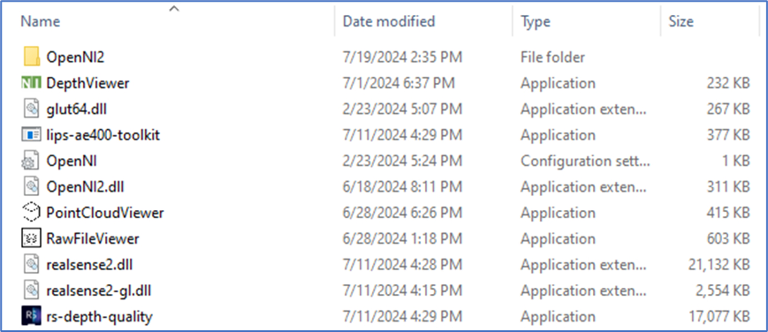
DepthViewer1 | LIPS® Developer Documentation

2. Wait for the toolkit to search for available cameras in the subnet.
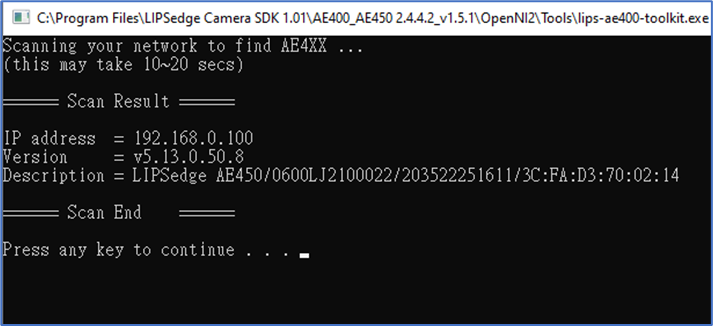
DepthViewer2 | LIPS® Developer Documentation

3. Wait for the toolkit to search for available cameras in the subnet.
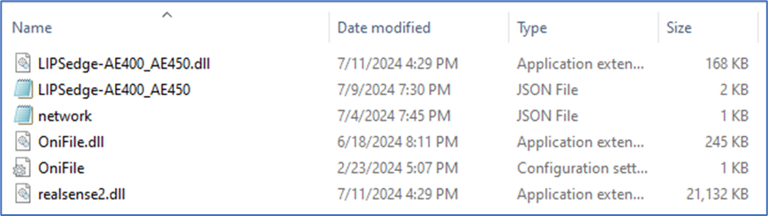
DepthViewer3 | LIPS® Developer Documentation

Note:
1. LIPSedge™ AE400 / AE450 is assigned a default IP address of 192.168.0.100. For camera connection, ensure the host PC / laptop is under the same subnet as the camera.
2. On rare occasions, the application may not be able to detect the camera when a new camera is connected. In that case, unplug the network cable restart the host PC / laptop, and scan again.

4. Edit network.json to modify the camera’s IP address (IP1) to match the camera intended for connection.
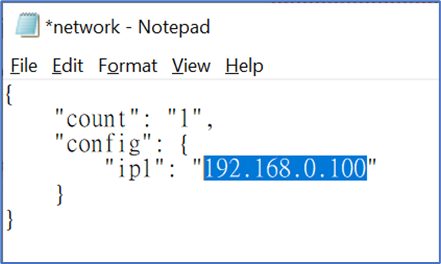
DepthViewer4 | LIPS® Developer Documentation

5. Save the modified information.

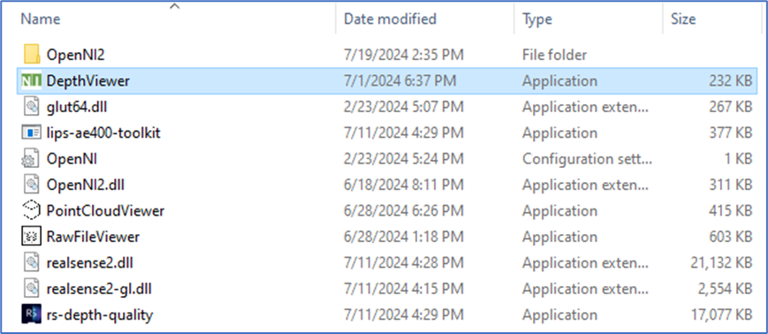
6. Go to LIPSedge™ AE400_AE450 SDK > OpenNI2 > Tools and start DepthViewer.
DepthViewer5 | LIPS® Developer Documentation

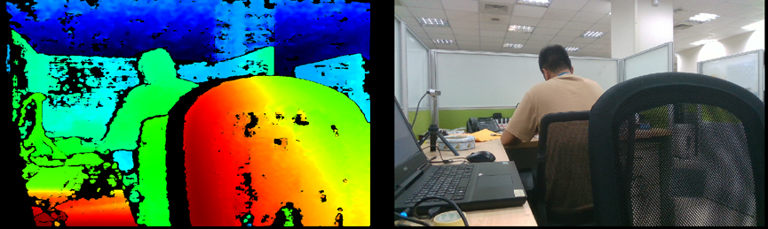
7. DepthViewer will display 3D / RGB images once the camera is properly connected.

The different colors in the depth images represent different distances. The distance from near to far will be represented by red, yellow, green, and blue, respectively.
DepthViewer6 2 | LIPS® Developer Documentation

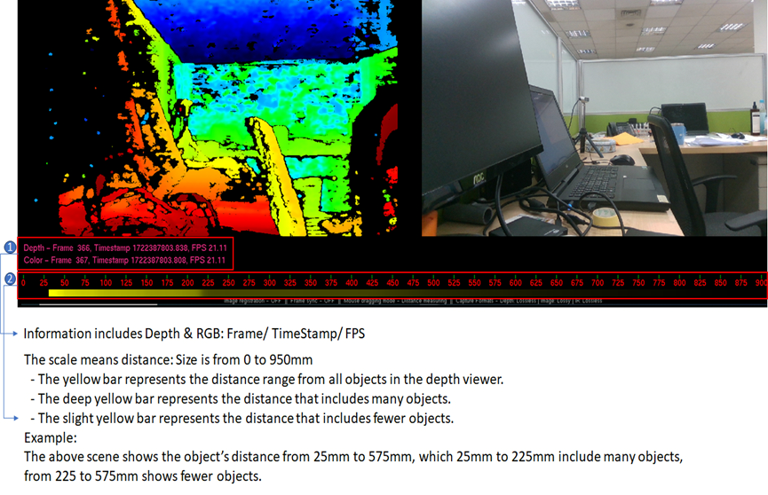
Press [p] to activate the pointer mode. The meter below shows the depth data of the given point marked by the indicator.
DepthViewer7 | LIPS® Developer Documentation

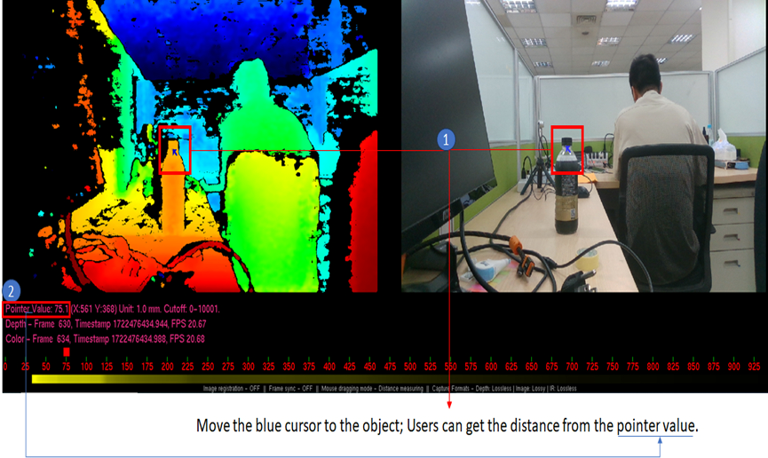
8. Users can get the depth value by Moving the blue cursor to the object.
DepthViewer8 | LIPS® Developer Documentation

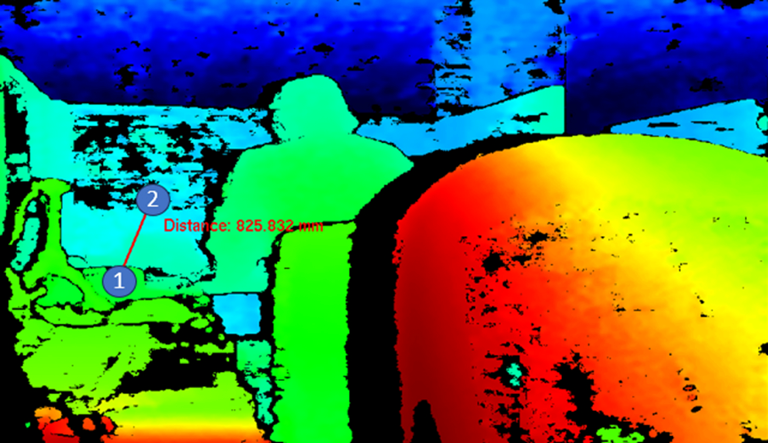
9. If users want to measure the distance between 2 points, please drag a mouse cursor from point 1 to point 2, as below. (The distance line will disappear when points move to the black area.)
DepthViewer9 1 | LIPS® Developer Documentation

10. Optionally press F to maximize/minimize the viewer’s window.

Note: If the Ethernet cable is forcibly removed while the DepthViewer is functioning, an ERROR! The device disconnected message appears on the screen. To resume live streaming, re-plug the Ethernet cable and restart the DepthViewer.

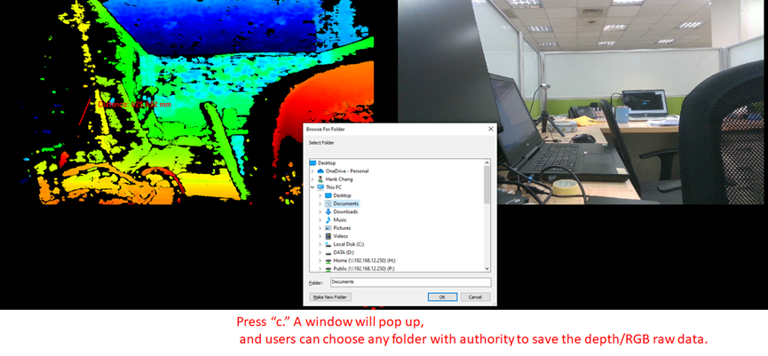
11. Press C to capture the current screen as a raw file. To access the raw file, go to LIPSedge™ AE400_450 SDK > OpenNI2 > Tools and drag the captured image file to the RawFileViewer.exe. For details, refer to Chapter 5 5.1-F.
DepthViewer10 | LIPS® Developer Documentation

Note: Please refer to the User Guide of each camera for detailed steps.

Updated on 2025 年 6 月 17 日
LIPSedge SDK

LIPSedge™ SDK v1.02 ToolsPointCloudViewer

#LIPS

About Us

Store

Blog

Terms of Use

DEVELOPER

Technical Support

SDK Download

Code Samples

Github

Copyright © 2026 LIPS Corporation | Privacy Policy | Cookie Policy | Do Not Sell My Personal Information