Skip to content
No results
Purple hexagonal logo with white diamond-shaped center featuring geometric star pattern design suitable for corporate branding and digital applications
LIPS®Developer
Documentation
Back To LIPS
Purple hexagonal logo with white diamond-shaped center featuring geometric star pattern design suitable for corporate branding and digital applications
LIPS®Developer
Documentation
Back To LIPS

Quick Introduction

7
  • LIPS® Documentation Overview
  • 3D Depth Camera Tech Overview
  • Depth Image
  • Understanding Depth
  • An Ideal Depth Camera
  • LIPSedge™ AE Series Camera Selection Guide
  • Frequently Asked Questions

LIPSedge Documents

49
  • LIPSedge™ AE400 / AE450
    • LIPSedge™ AE400 / AE450 Complementary Documents
      • Certifications Documents
      • STEP files for CAD Use
      • Firmware
    • LIPSedge™ AE400 / AE450 User Guide
      • LIPSedge™ AE400 / AE450
      • User Guide
      • Previous Releases (Archive)
    • LIPSedge™ AE400 / AE450 SDK Release
      • SDK Release
      • Previous Releases (Archive)
    • LIPSedge™ AE400 / AE450 Installation
      • Installation
      • Linux
      • Windows
      • ROS Wrapper
      • NVIDIA ISAAC Wrapper
      • Persistent Connection
  • LIPSedge™ AE430 / AE470
    • LIPSedge™ AE430 / AE470 Supplementary Documents
      • Firmware
      • STEP files for CAD Use
    • LIPSedge™ AE430 / AE470 User Guide
      • LIPSedge™ AE430 / AE470
      • User Guide
      • Previous Releases (Archive)
    • LIPSedge™ AE430 / AE470 SDK Release
      • SDK Release
      • Previous Releases (Archive)
  • LIPSedge™ DL & M3 Series
    • LIPSedge™ DL & M3 Series Installation
      • Installation
      • Ubuntu
      • Windows
    • LIPSedge™ DL & M3 Supplementary Documents
      • STEP files for CAD Use
    • LIPSedge™ DL & M3 Series SDK Release
      • SDK Release
      • Changelog
      • Previous Releases (Archive)
    • LIPSedge™ DL & M3 Series User Guide
      • LIPSedge™ DL & M3 Series
      • User Guide
      • Previous Releases (Archive)
  • LIPSedge™ L215u / L210u
    • LIPSedge™ L215u / L210u User Guide
      • LIPSedge™ L215u / L210u
      • User Guide
      • Previous Releases (Archive)
    • LIPSedge™ L215u / L210u SDK Release
      • SDK Release
      • Changelog
      • Previous Releases (Archive)
    • LIPSedge™ L215u / L210u Installation
      • Installation
      • Linux
      • Windows
    • LIPSedge™ L215u / L210u Supplementary Documents
      • STEP files for CAD Use
  • LIPSedge™ L235
    •  LIPSedge™ L235 User’s Manual
    • LIPSedge™ L235 SDK Release
  • LIPSedge™ S Series
    • LIPSedge™ S Series User Guide
      •  LIPSedge™ S Series
      • User Guide
    • LIPSedge™ S Series SDK Release
      • SDK Release
    • LIPSedge™ S Series Installation
      • Windows
  • LIPSedge™ AE430-DK / AE470-DK
    • LIPSedge™ AE430-DK / AE470-DK
    • User Guide

LIPSedge™ SDK 1.x

72
  • Introduction to LIPSedge™ SDK 1.x
    • LIPSedge™ SDK 1.x
    • Benefits from LIPSedge™ SDK implementation
    • LIPSedge™ SDK 1.x Installation Architecture
    • How to identify each camera SDK
  • Tutorial and deployment
    • Tutorials
    • Development and Deployment on arm64
  • Features Articles
    • Features Articles
    • LIPSedge™ SDK Persistent Connection for PoE and USB
  • LIPSedge™ SDK Frameworks
    • LIPSedge™ SDK Frameworks
    • ROS
    • ROS2
    • NVIDIA Isaac Wrapper
    • GenICam (for Halcon / Aurora Vision)
      • GenICam (for Halcon / Aurora Vision)
      • User Manual
      • Driver(.cti) and Nodemap (.xml)
      • Supported LIPSedge™ Camera SDK
      • Installation Example
  • LIPSedge™ SDK Tools
    • LIPSedge™ SDK Tools
    • DepthViewer
    • PointCloudViewer
    • CameraParameterViewer
    • CameraCenterViewer
    • CameraEventListener
    • CameraPowerTest
    • LensModeSelector
    • LIPSImuReader
    • CameraSimpleViewer
    • RawFileViewer
  • LIPSedge™ SDK Languages & Libraries
    • LIPSedge™ SDK Languages & Libraries
    • OpenCV
    • C++
      • C++
      • environment-setup
      • hello-lipsedge-sdk
      • opencv-viewer
      • roi
      • depth-data
      • align-depth-color
      • range-filter
      • remove-background
      • record
      • pointcloud
      • config-resolution
      • camera-parameter
      • align
      • distance
      • grabcuts
      • measure
      • motion
      • post-processing
      • save-to-disk
      • sensor-control
    • Python
      • Python
      • environment-setup
      • hello-lipsedge-sdk
      • opencv-viewer
      • roi
      • depth-data
      • align-depth-color
      • range-filter
      • remove-background
      • record
    • Java
      • Java
      • ni-hello
    • C#
      • C#
      • ni-hello
      • simple-read
  • New Features for v1.1.1
    • New Features for v1.1.1
  • LIPSedge™ SDK Sample Codes
    • LIPSedge™ SDK Sample Codes
    • Sample Applications & Viewer & Utilities
      • Sample Applications & Viewer & Utilities
      • ni-viewer
      • ni-pointcloud-gl
      • ni-camera-matrix

LIPSense Documents

33
  • LIPSense™ 3D Body Pose Middleware
    • LIPSense™ 3D Body Pose SDK
    • User Manual & SDK Download
    • License Management
    • Changelog
    • Previous Releases (Archive)
    • Examples
      • Python
        • Python
        • python_example
      • c#
        • SkeletonCSharp
        • C#
      • C++
        • C++
        • skeleton_example
        • skeleton_opencv
  • LIPScan 3D ™ Middleware
    • LIPScan 3D ™ Middleware
    • LIPScan 3D™ Desktop
      • LIPScan 3D™ Desktop
      • User’s Manual
      • Application Download
      • Release Notes
      • Previous Releases
    • LIPScan 3D™ SDK
      • LIPScan 3D™ SDK
      • User’s Manual
      • SDK Download
      • Release Notes
      • Previous Releases
  • LIPSFace™ SDK
    • LIPSFace™ SDK
    • LIPSFace Overview
    • Changelog
  • LIPSFace™ HW120/125 On-Device 3D Facial Recognition
    • LIPSFace™ HW120/125 On-Device 3D Facial Recognition
    • User Guide
    • SDK Download
    • STEP files for CAD Use
  • LIPSFace™ HW110/115 On-Device 3D Facial Recognition
    • LIPSFace™ HW110/115 On-Device 3D Facial Recognition
    • User Guide & SDK Download
    • STEP files for CAD Use

LIPSolution Documents

3
  • LIPSAMR Perception Development Kit
    • LIPSAMR Perception Development Kit (PDK4)
      • Overview
      • Technical Specifications
      • NVBLOX Sample Build

LIPSMetric Documents

7
  • LIPSMetric™ VD115 Vehicle Dimensioner
    • LIPSMetric™ VD115 Vehicle Dimensioner
  • LIPSMetric™ ST115 Static Dimensioner
    • LIPSMetric™ ST115 Static Dimensioner
    • User’s Manual
  • LIPSMetric™ ST130 Pallet Dimensioner
    • LIPSMetric™ ST130 Pallet Dimensioner
    • User Guide
  • LIPSMetric™ HA110 Handheld Dimensioner
    • LIPSMetric™ HA110 Handheld Dimensioner
    • User’s Manual

LIPSMetric™ Measure Master

8
  • LIPSMetric™ ST110d
    • User’s Manual
    • SDK Release
  • LIPSMetric™ ST115b
    • User’s Manual
    • SDK Release
  • LIPSMetric™ HA110-M
    • User’s Manual
    • SDK Release
  • LIPSMetric™ HA115a
    • SDK Release
    • User’s Manual

Other LIPS Documents

1
  • LIPS License Management
    • LIPS License Management
View Categories
  • Home
  • LIPS® Developer Documentation
  • Other LIPS Documents
  • LIPS License Management
  • LIPS License Management

LIPS License Management

  • LIPS License Management User’s Manual
  • LIPS License Management User’s Manual for LIPScan™ 3D Scan

This document provides a step-by-step guide for purchasing, activating, and managing the runtime software license for the License Portal.

Supported Products #

  • Runtime Software – Standard Edition
  • Runtime Software – Pro Edition

Purchase & Activation Process #

The acquisition and activation of Runtime software require the successful completion of a standardized four-stage workflow to ensure the secure and accurate allocation of digital licenses. This process integrates order placement through bank transfer or PayPal with a mandatory account registration phase that relies on strict email consistency for data synchronization. Final entry into the Customer Dashboard is secured by a one-time password (OTP) verification, establishing the necessary permissions for license generation, token status monitoring, and the retrieval of essential software files.

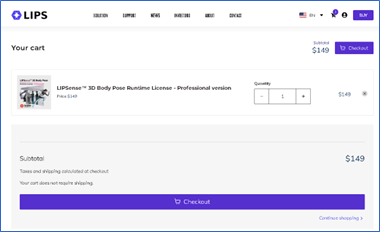
Step 1    Add to Cart & Checkout #

Select the desired Runtime product, review the order details, and proceed to checkout. Available payment methods include Bank Transfer and PayPal.
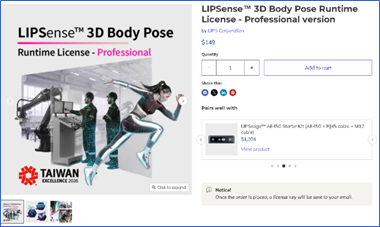
Picture1 | LIPS® Developer Documentation

Step 2    Order & Payment Confirmation #

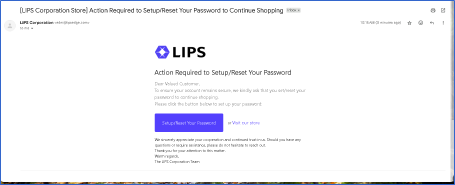
Once the order is placed, the user will receive an Order Confirmation email. After payment is confirmed, the system delivers a Payment Confirmation email with an account registration or login link.
Picture2 | LIPS® Developer Documentation

Step 3    Register or Login #

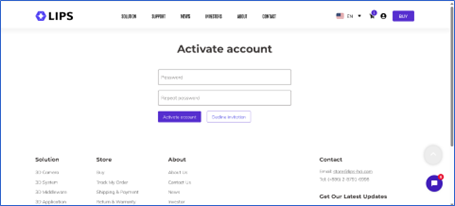
Existing users can log in directly. New users must register using the same email address they provided during purchase to create a password.
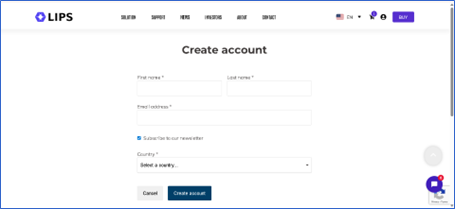
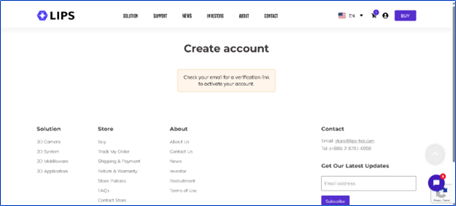
Picture3 | LIPS® Developer Documentation
Picture4 | LIPS® Developer Documentation
Picture5 | LIPS® Developer Documentation
Picture6 | LIPS® Developer Documentation
  • Entering the password allows the user to activate the account.
  • Now the user can see his cart to check out the product. Enter all relevant information and select the preferred payment method (Bank transfer and PayPal)
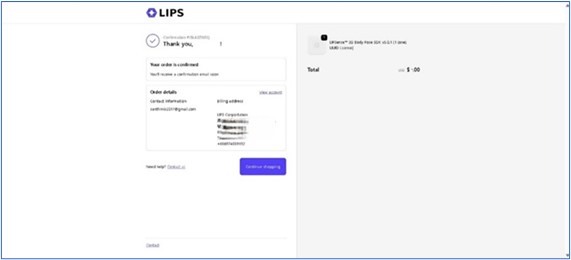
Picture7 | LIPS® Developer Documentation
  • The user will receive a purchase confirmation email once the payment is received.
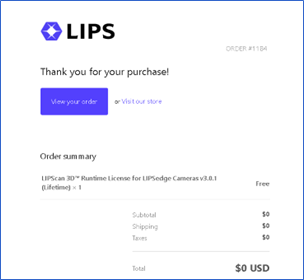
Picture9 | LIPS® Developer Documentation

Step 4    Email Verification (OTP) #

After the payment is received, the user will receive another email with registration for the user’s dashboard and dashboard link. For details, refer to this guide: https://youtu.be/xMpBH_ad29U
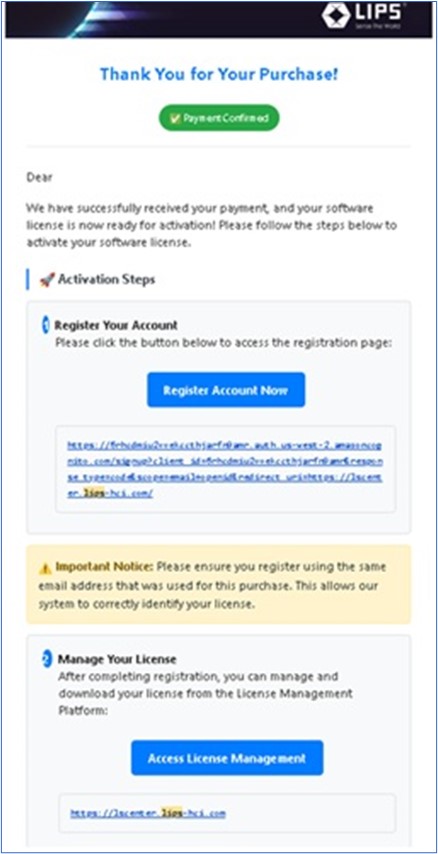
Picture10 | LIPS® Developer Documentation

The user must use the same email he used for the purchase to register for the user’s dashboard.
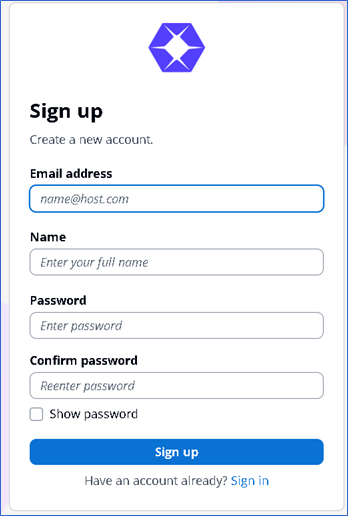
Picture11 | LIPS® Developer Documentation

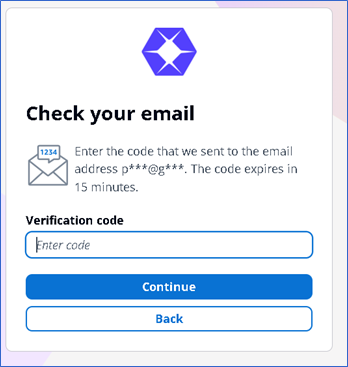
A one-time verification code (OTP) will be sent to a registered email. Enter the code to access the Customer Dashboard.
Picture12 | LIPS® Developer Documentation

Customer Dashboard #

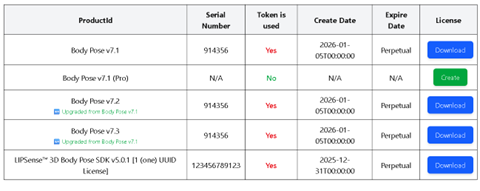
From the dashboard, users can view purchased products, check token status, generate licenses, and download license files.
Picture13 | LIPS® Developer Documentation

Generate License #

Step 1. Generate License #

Before generating the license, verify these prerequisites:

Prerequisites

  1. Hardware setup  (Navigate to DOCUMENTS, INSTALLATION & SETUP–> and select the user’s manual specific for the camera)
  2. Software setup
  3. How to find Camera serial number(https://youtu.be/pJzNP8ZXPrk)
  4. License setup (https://youtu.be/xMpBH_ad29U)
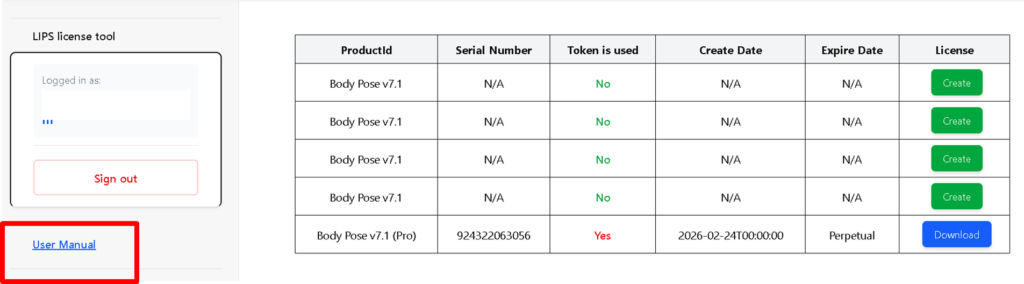
  1. The user can find the user’s manual on the lefthand side of the dashboard to check the process to generate license.
Picture1 1 | LIPS® Developer Documentation

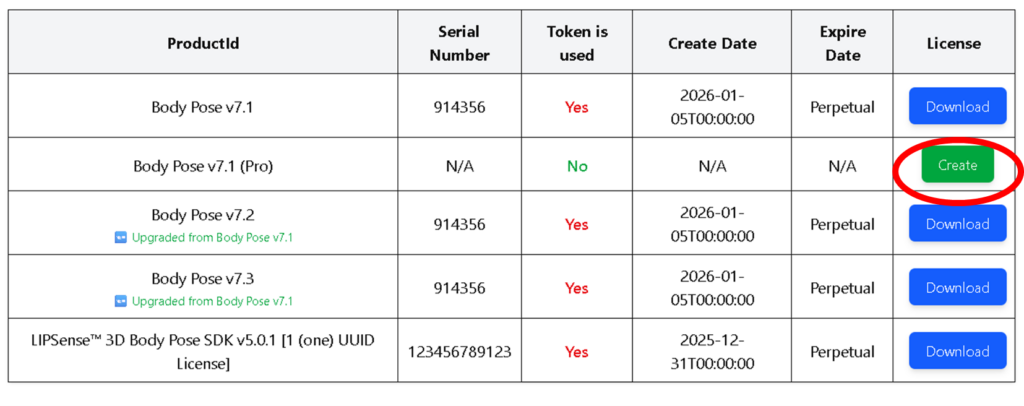
2. Click the Create button.

Picture2 1 | LIPS® Developer Documentation

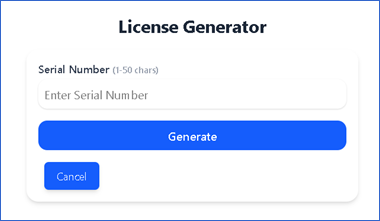
3. A window pops-up.

image | LIPS® Developer Documentation

4. Enter the camera serial number

5. Click Generate.

6. Download the license file and place it in the designated application folder.

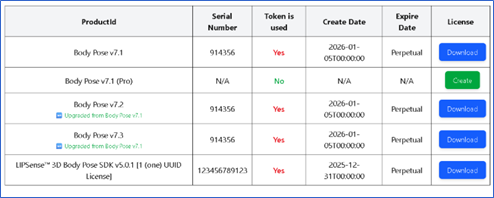
Understanding the License dashboard

Here the users’ actions are available. 
Picture16 | LIPS® Developer Documentation
  • Product ID: The software product purchased
  • Serial Number: The camera serial number associated with this license.
  • Token is Used: Shows whether the license has already been generated:
    • Yes – The license has been created.
    • No – The license has not been created yet and can be generated.
  • License: User can download the generated license here.  

After downloading the license copy, paste it into the appropriate application folder.

Upgrade Policy #

Within the 1-Year Upgrade Program

If a new version is released within one (1) year from the purchase date, the user can upgrade to the latest version at no additional cost.

  • The latest version will be automatically available in the CUX Dashboard.
  • Users can download the new version without any additional steps.
  • The upgrade eligibility is based on the original purchase date.

After the 1-Year Period

If more than one (1) year has passed since the purchase date, free upgrades are NO longer available.

The purchase process follows the same steps as a new license order.
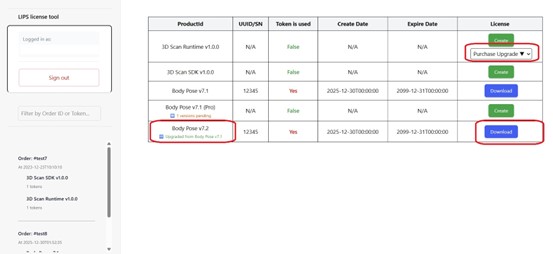
Picture3 | LIPS® Developer Documentation

A Purchase Upgrade button will appear under the Download option in the dashboard.

Users can click this button to access the upgrade page.

The upgrade must be purchased to access newer versions.

Contact Support #

If you encounter any problems during license generation, please reach out to our Customer Support team for help. 

Contact Information 
📍 Address:
2F, No. 100, Ruiguang Rd., Neihu Dist., Taipei 114, Taiwan (R.O.C.)

📞 Phone:
Tel: (+886) 2-8791-6998
Fax: (+886) 2-8791-8996

✉️ Email:
[email protected]Before contacting support: Please prepare your registered email, product name & version, camera serial number, error message/screenshot, and operating system

Updated on 2026 年 7 月 30 日
LIPS License ManagementLIPS License Management
Table of Contents
  • Supported Products
  • Purchase & Activation Process
    • Step 1    Add to Cart & Checkout
    • Step 2    Order & Payment Confirmation
    • Step 3    Register or Login
    • Step 4    Email Verification (OTP)
  • Customer Dashboard
  • Generate License
    • Step 1. Generate License
  • Upgrade Policy
  • Contact Support

#LIPS

About Us

Store

Blog

Terms of Use

DEVELOPER

Technical Support

SDK Download

Code Samples

Github

Copyright © 2026 LIPS Corporation | Privacy Policy | Cookie Policy | Do Not Sell My Personal Information