Method 1: Download from LIPS #
1. Go to AE Series SDK release page.
2. Download the latest SDK
3. Extract the downloaded file
Method 2: Build from Source #
1. Install git and cmake-gui
2. Clone source from realsense SDK and ae4xx-sdkCopy
$ git clone https://github.com/IntelRealSense/librealsense
$ git clone https://github.com/lips-hci/ae400-realsense-sdk
3. Run patch scriptCopy
$ cd librealsense
$ ../ae400-realsense-sdk/scripts/patch-realsense-to-lips-ae400-sdk.sh .
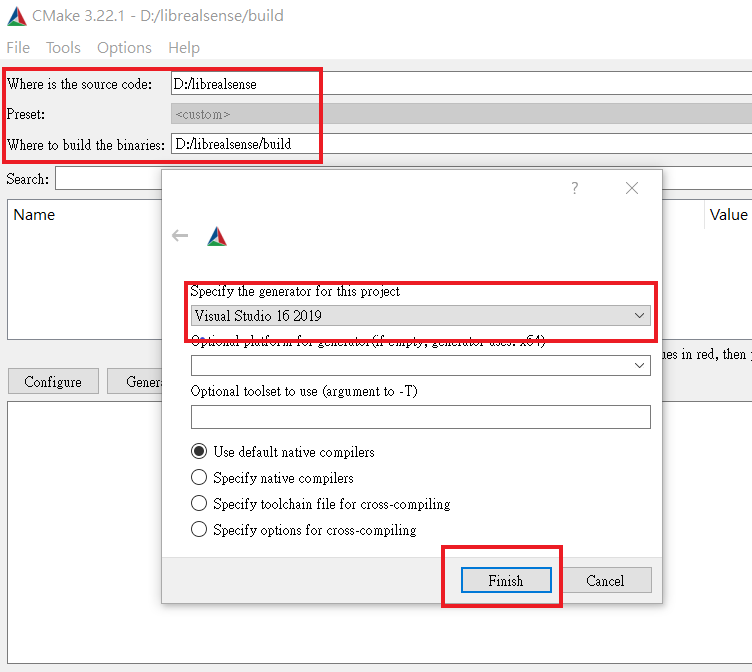
4. Open cmake-gui and set the source code to librealsense folder and build folder to wherever you want. Then click Configure, chose your Visual Studio version and other options remain default.
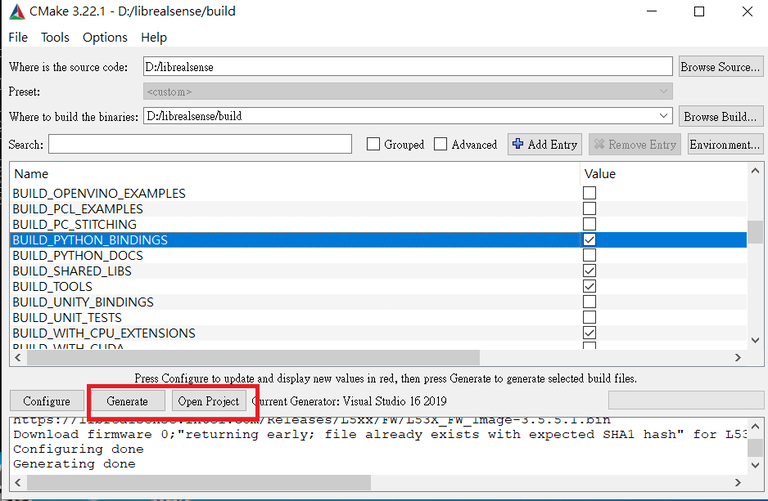
5. Click Generate. Then click Open Project
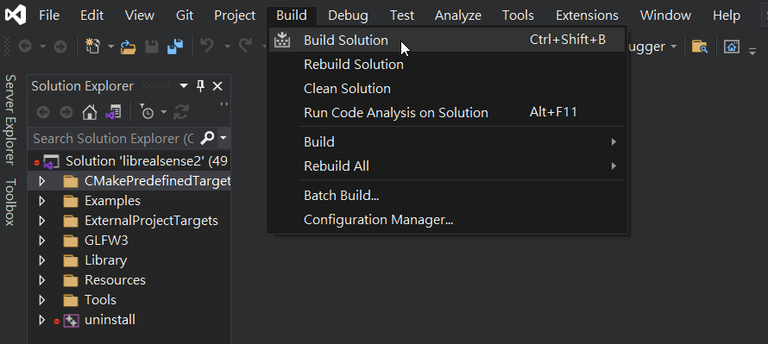
6. After Visual Studio opened, click Build -> Build Solution and wait for a while.
Camera Connection Configuration #
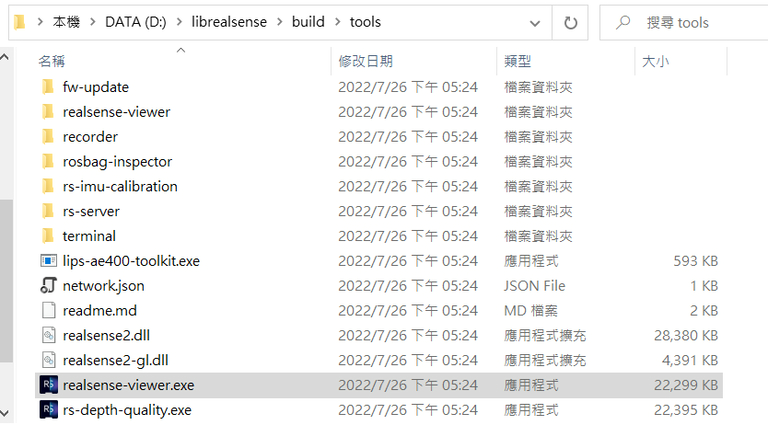
Before running the camera viewer, check the correct IP is set in network.json. This configuration file should be place next to the executable application.
The default IP of all AE series camera are
192.168.0.100. Make sure you set the right IP address if you modify on your own.
Copy
{
  "count": "1",
  "config": {
    "ip1": "192.168.0.100"
  }
}
Run camera viewer #
Launch realsense-viewer in the SDK folder
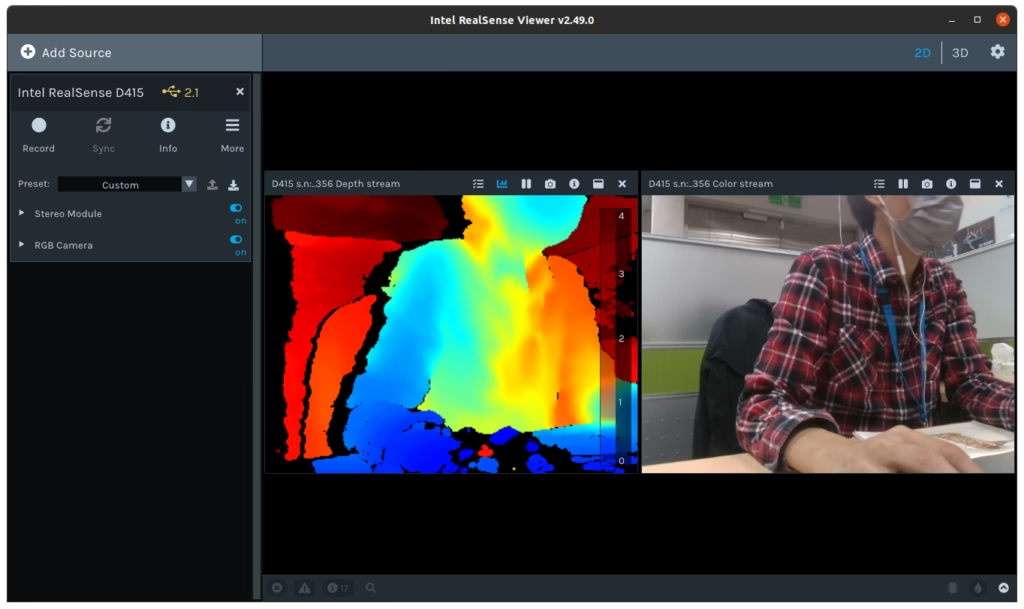
You can see the 2D and 3D camera feed by switching on Stereo Module and RGB Camera on the left panel.